




OpenWrt相关教程:
在ESXI上部署OpenWrt软路由系统
https://www.osyunwei.com/archives/16907.html
OpenWrt软路由系统扩容磁盘
https://www.osyunwei.com/archives/16933.html
在OpenWrt软路由系统中设置虚拟专用网拨号
https://www.osyunwei.com/archives/16944.html
对OpenWrt的squashfs格式镜像进行扩容操作
https://www.osyunwei.com/archives/16960.html
简单说明:
在X86平台物理机上安装OpenWrt软路由系统,建议使用ext4格式的镜像文件,安装后可以扩容,当然也能选择提前扩容好的squashfs格式的镜像文件来安装。
下载地址:
https://downloads.openwrt.org/releases/
https://downloads.openwrt.org/releases/24.10.5/targets/x86/64/
https://downloads.openwrt.org/releases/24.10.5/targets/x86/64/openwrt-24.10.5-x86-64-generic-ext4-combined.img.gz
所需工具:
1、可以从PE系统启动的u盘
2、写盘软件DiskImage:
https://roadkil.net/downloads.php
https://roadkil.net/download.php?FileID=409&ProgramID=12
3、OpenWrt镜像文件openwrt-24.10.5-x86-64-generic-ext4-combined.img
把openwrt-24.10.5-x86-64-generic-ext4-combined.img和DiskImage拷贝到u盘根目录下面
我这里有之前扩容好的
squashfs格式的
2GB镜像文件:
openwrt-24.10.5-x86-64-generic-squashfs-combined.img
以这个镜像为例来安装
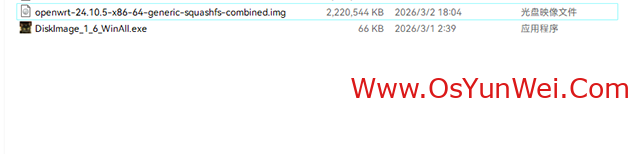
从u盘启动,进PE系统
打开DiskImage_1_6_WinAll.exe写盘工具

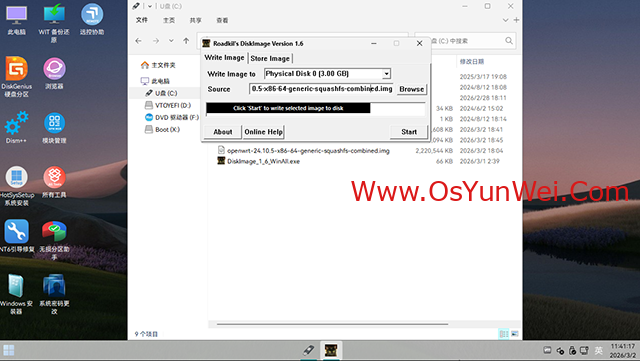
切换到Write Image
Write Image to:选择要安装OpenWrt的磁盘,一定要选择正确
Source:选择我们下载好的OpenWrt镜像文件
确认无误后,点Start开始写盘操作
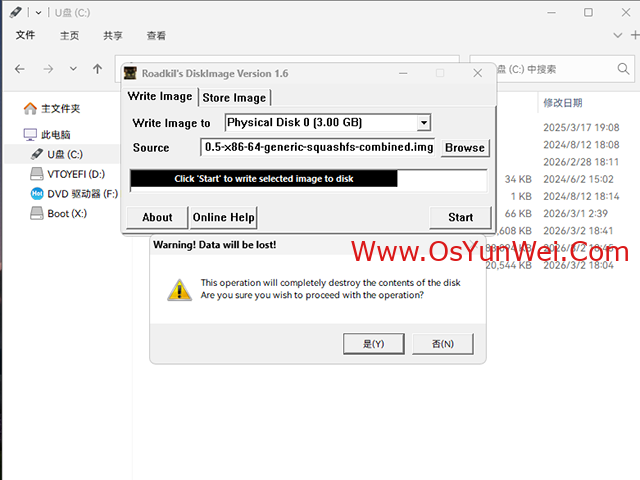
再次确认,点是
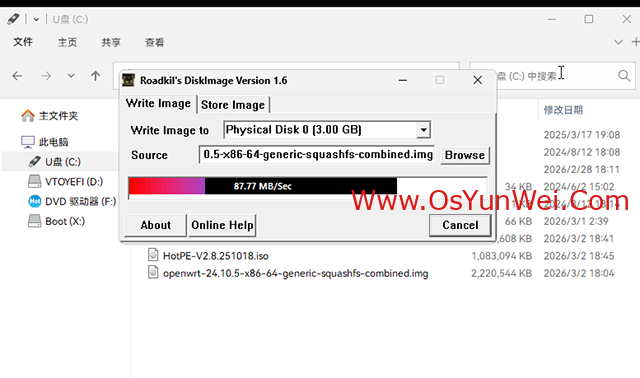
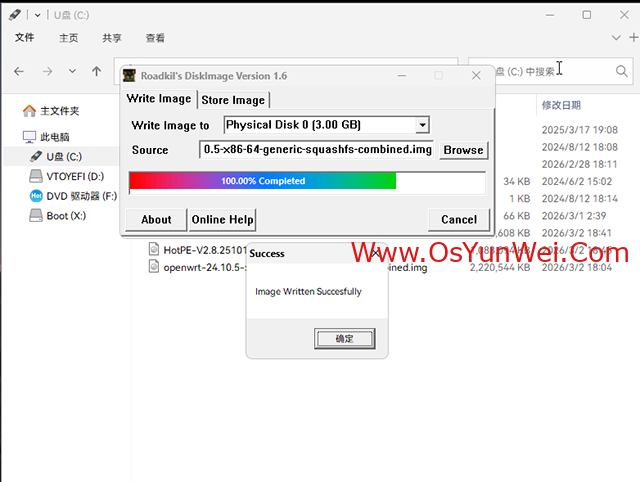
等待执行完成,然后关闭电脑,拔掉u盘,开机进bios设置刚刚写入OpenWrt镜像的硬盘为第一启动,保存重启
会看到下面的界面,等待启动完成。
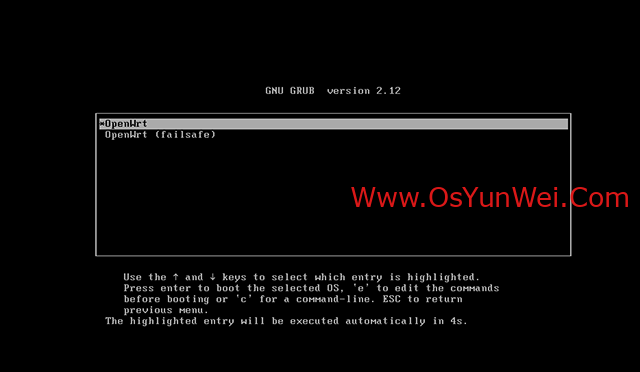
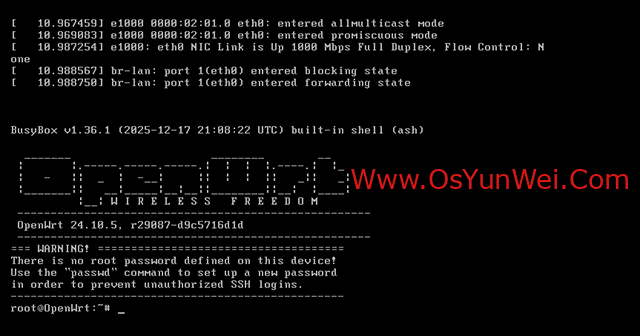
这个时候OpenWrt已经安装完成了。
简单设置OpenWrt系统
默认root登录密码为空
默认第一款网卡是lan,默认ip地址是192.168.1.1
我们修改为自己需要的ip地址

vi /etc/config/network
config interface 'lan'
option device 'br-lan'
option proto 'static'
option ipaddr '192.168.21.100'
option netmask '255.255.255.0'
option ip6assign '60'
:wq! #保存退出
reboot #重启系统
登录web控制台
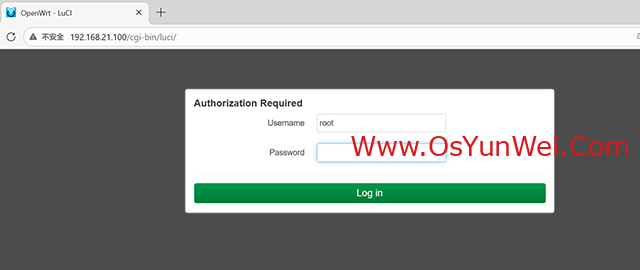
root
密码为空
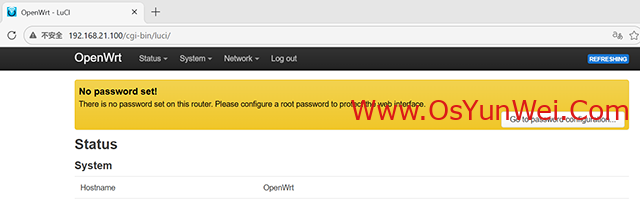
登录成功
至此,在X86平台物理机上安装OpenWrt软路由系统完成。

 ②190706903 ③203744115